Microsoft EntraID
Configure Microsoft Entra ID as an Identity Provider for CyberGuard
Go into your Azure portal home
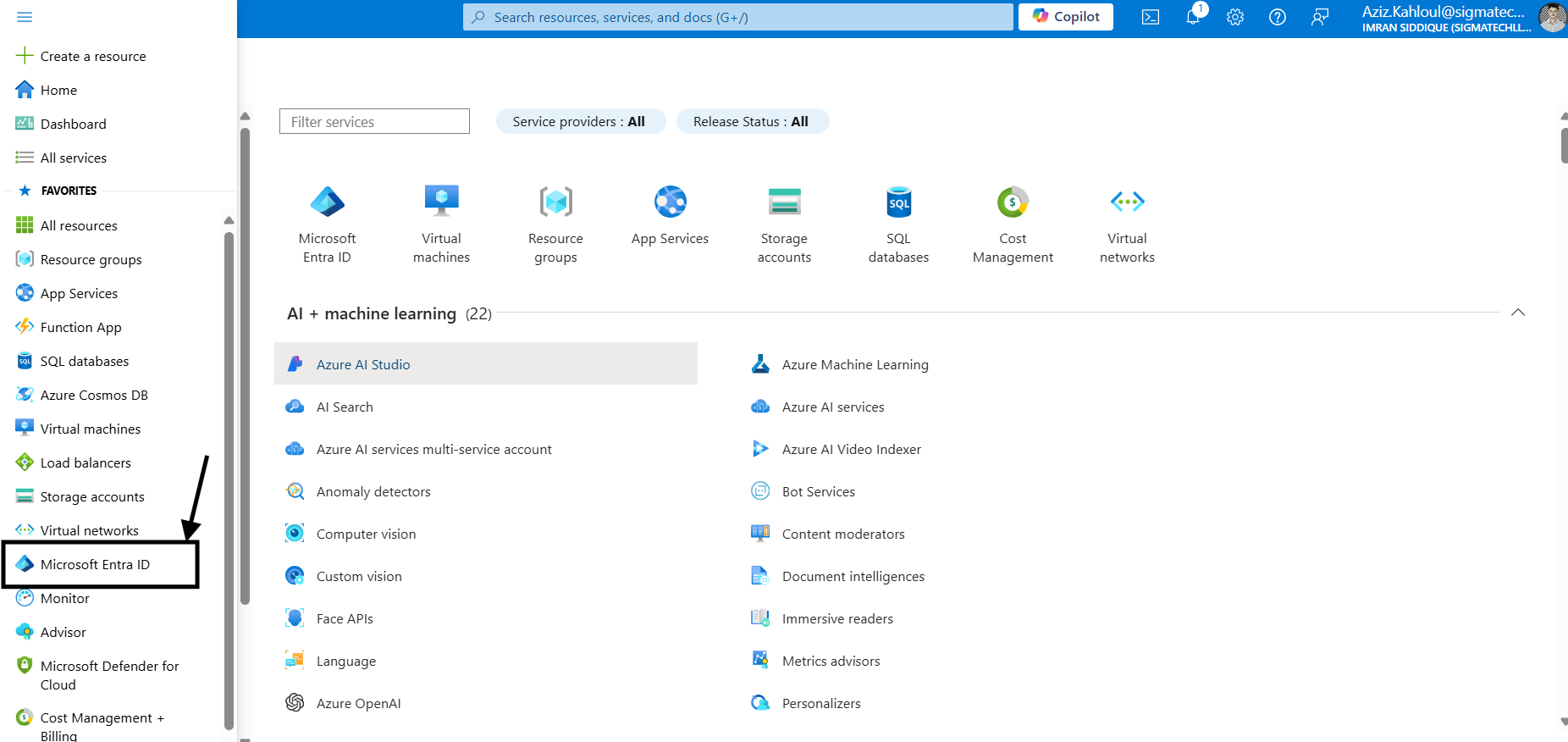
Open the sidebar menu and click on Microsoft EntraID
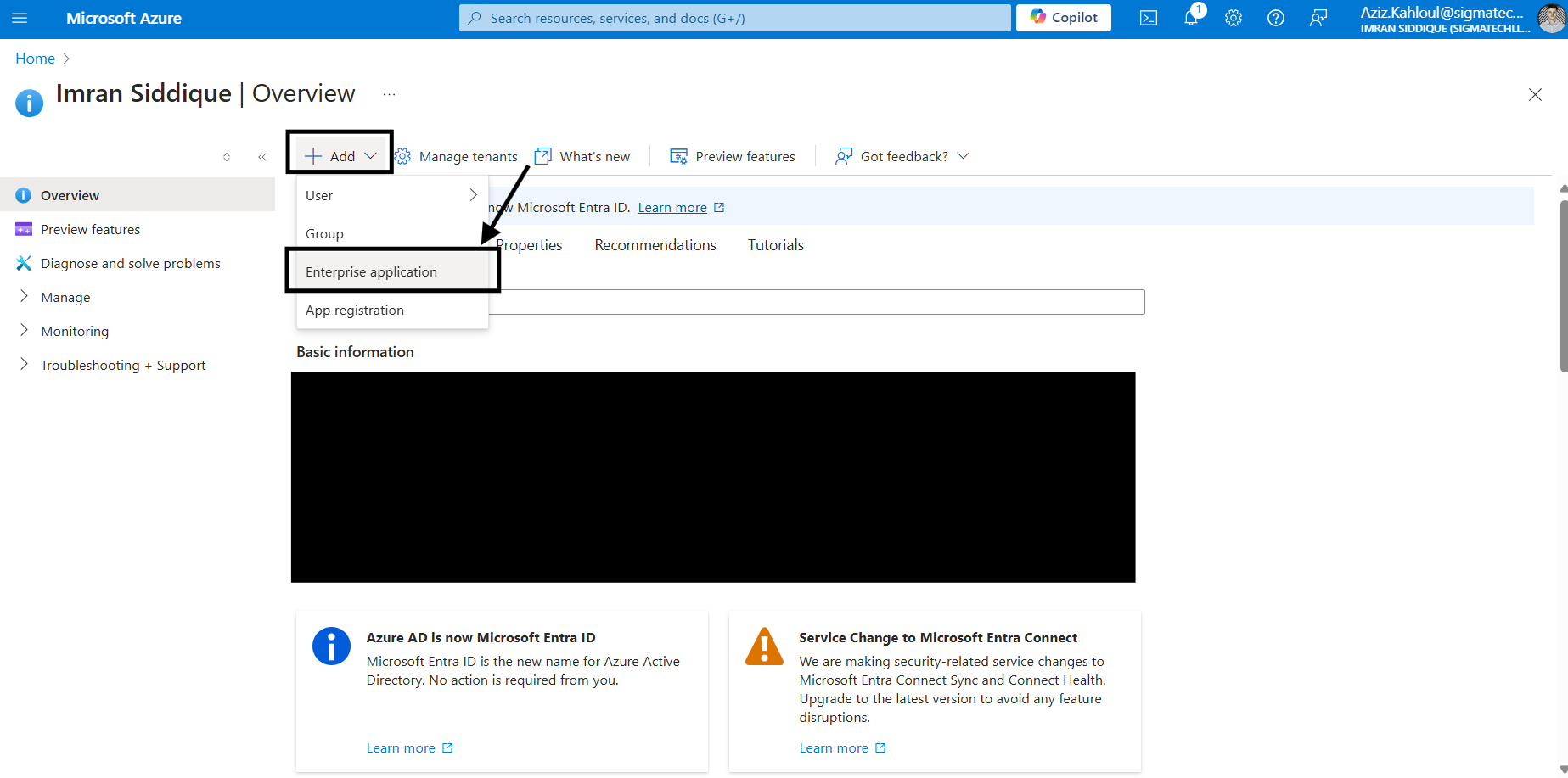
Click on Add button > Enterprise application
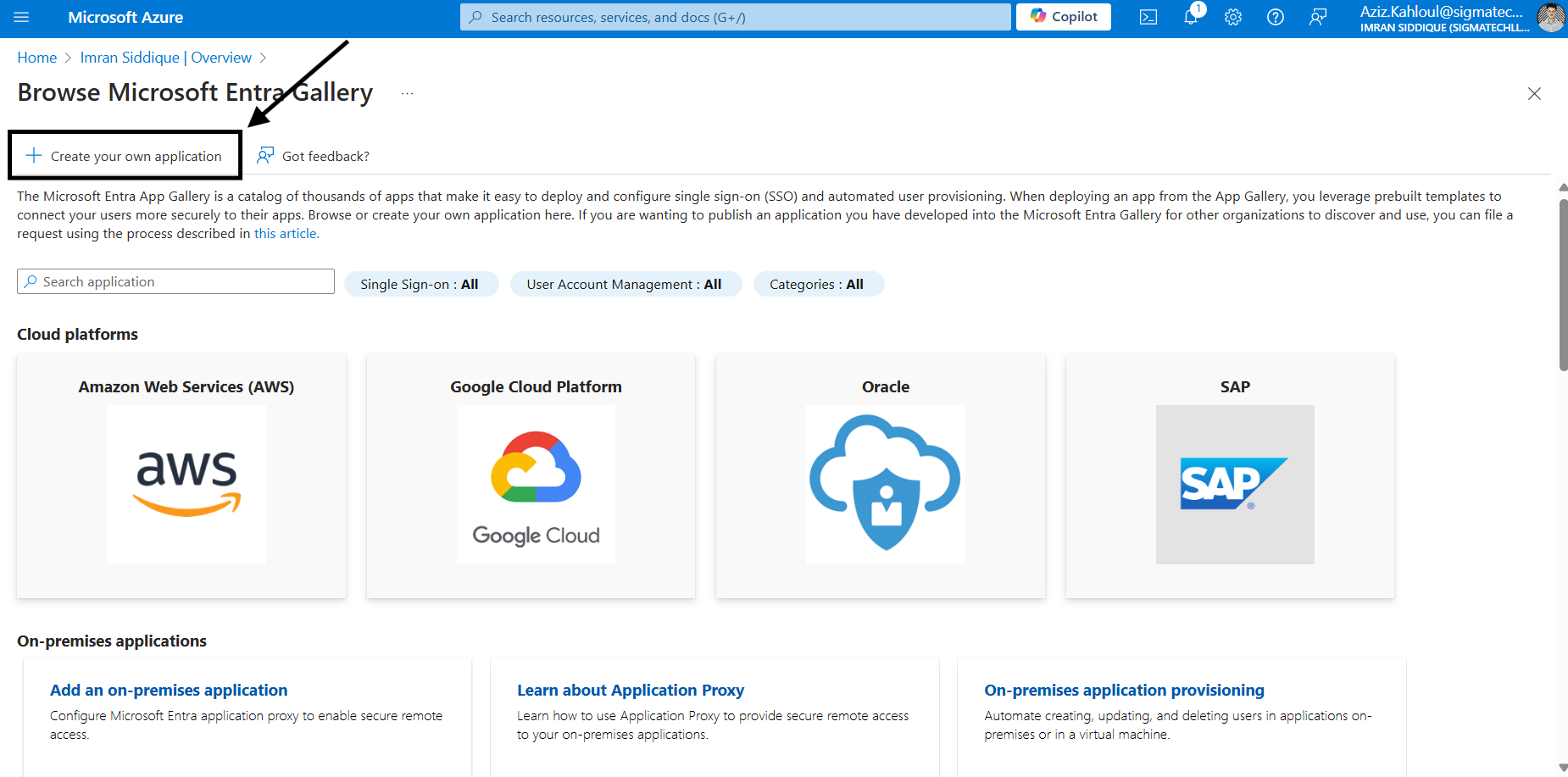
Click on Create your own application
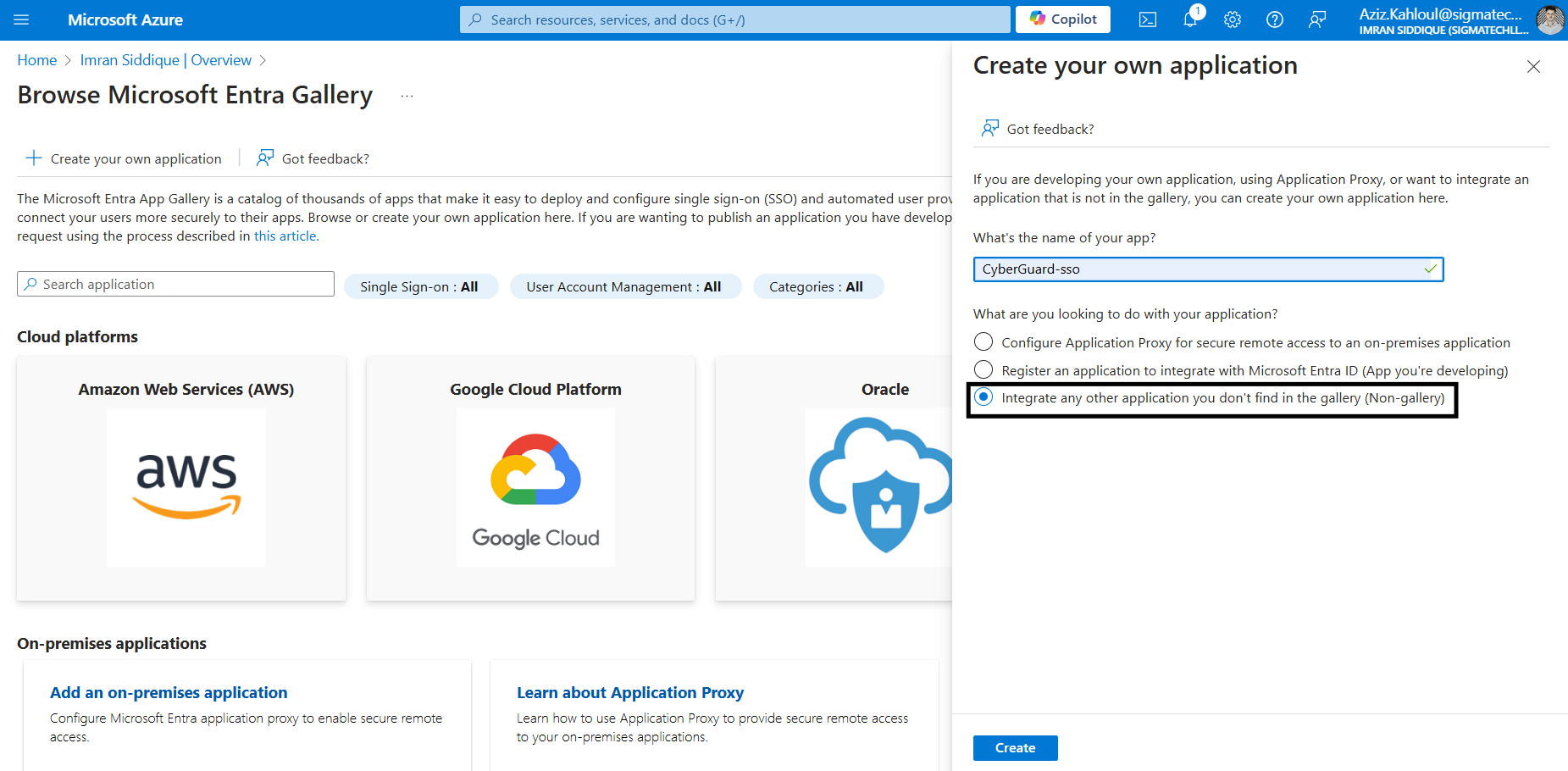
Enter a name and then click Integrate any other application you don’t find in the gallery (Non-gallery)
Click on Single sign-on from the sidebar menu or on Set up single sign on and choose SAML
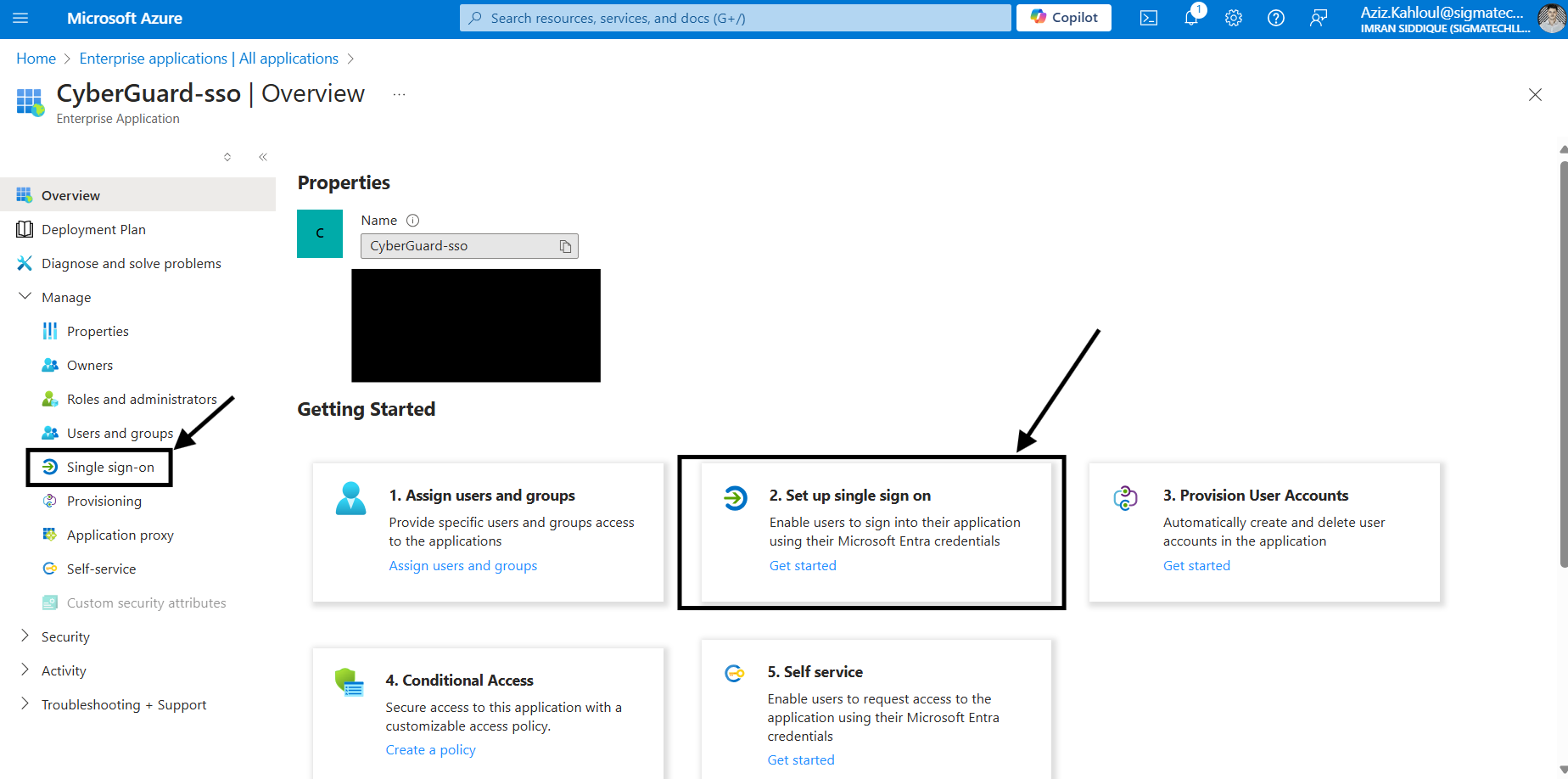
Click on SAML
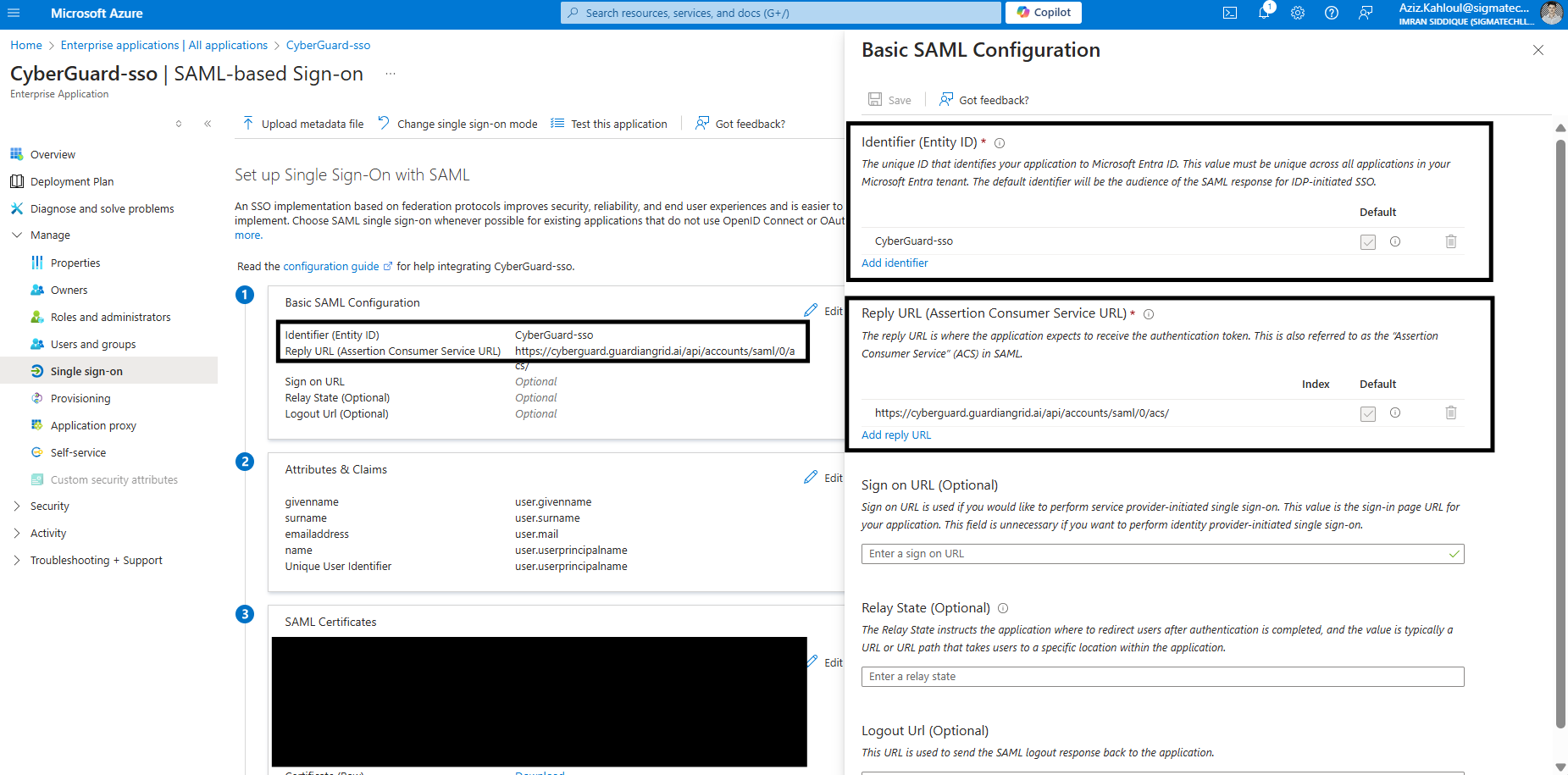
In the first box Basic SAML Configuration, specify the Entity ID, it has to be the same than SP Entity ID in CyberGuard (see next screenshot)
Add the Reply URL:
<base_url>/api/accounts/saml/0/acs/(for example with CyberGuard:https://cyberguard.guardiangrid.ai/api/accounts/saml/0/acs/)
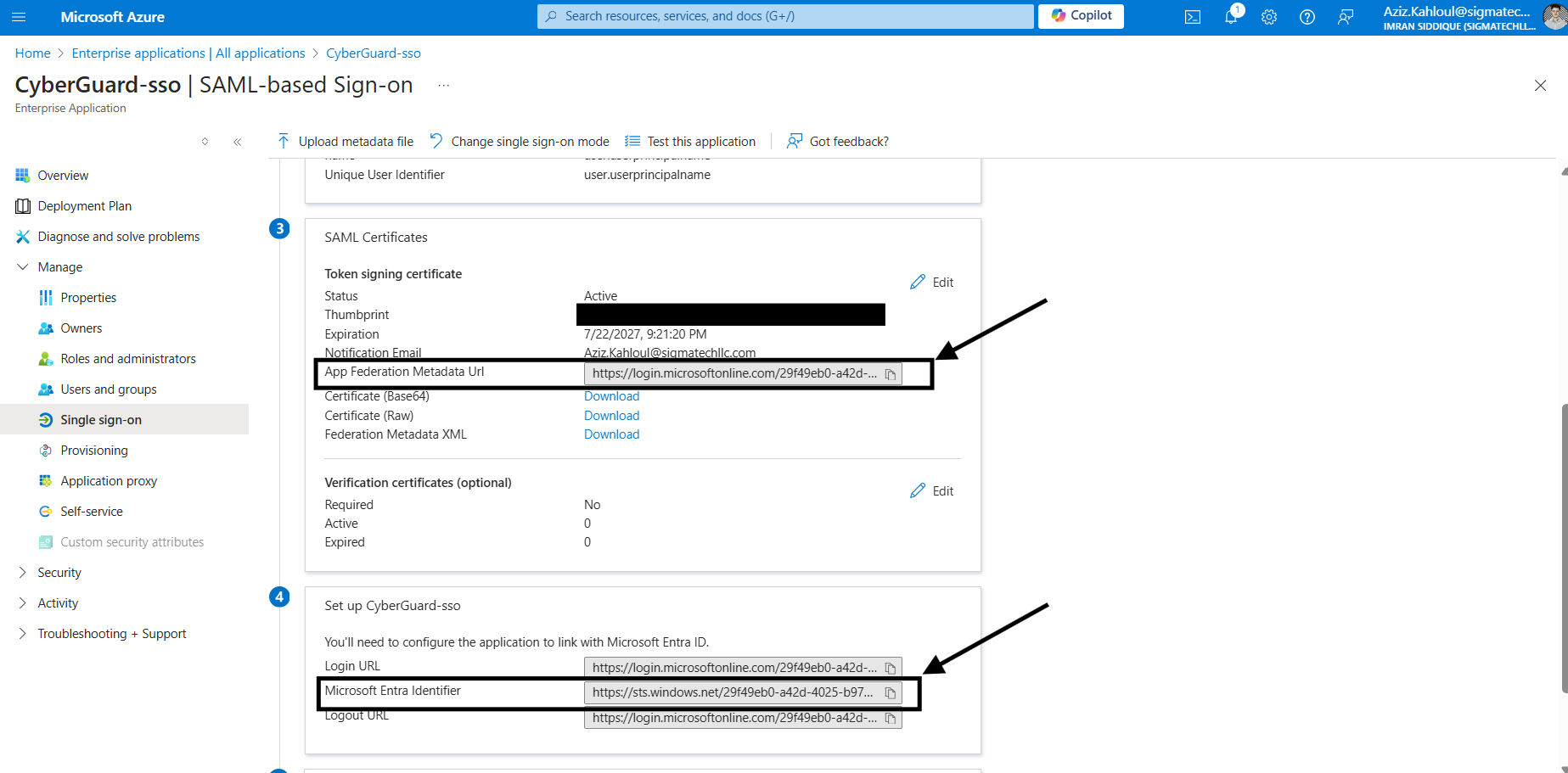
In the third box SAML Certificates, copy the App Federation Metadata Url as it is the Metadata URL in CyberGuard (see next screenshot)
In the fourth box Set up <App_name>, copy the Microsoft Entra Identifier as it is the IdP Entity ID in CyberGuard
Click on Users and groups in the sidebar menu, and Add user/group to give them access to CyberGuard with SSO
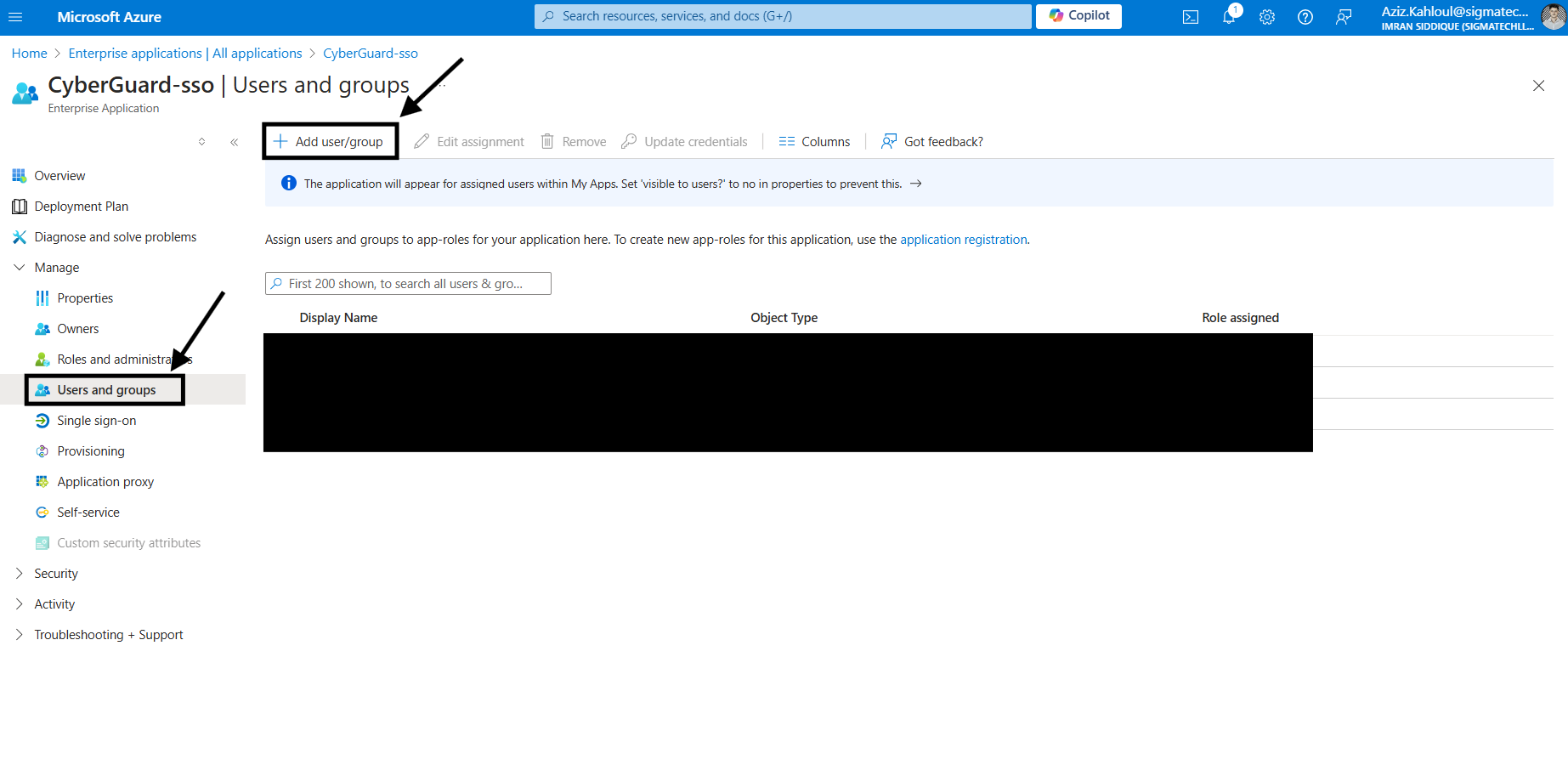
Add a user in your application doesn't automatically create the user on CyberGuard
You can now configure CyberGuard with the 3 parameters you've retrieved.
Last updated